Daily work
A delivery man's day (on the phone)
How a delivery man works on his phone — signing in, entering every delivery, collecting dues and spending on the way, checking and closing the day; and how owners and managers follow their work
Who it is for:Delivery manManagerOwner
On this page
Delivery men spend the day taking cylinders out by van or rickshaw. GasDesk runs in the phone's browser, so each delivery can be entered on the spot — no matching of paper slips in the evening.
Setting up the phone the first time
- The owner creates your login in Settings → Staff with your mobile number and the Delivery man role, and gives you the password.
- Open the GasDesk address in Chrome on your phone and sign in with your mobile number and password.
- In Chrome's menu (⋮) tap Add to Home screen — a GasDesk icon appears on the home screen, one tap opens it next time.
- Pick your language with EN | বাং at the top if you like.
On the phone there are four buttons at the bottom: Home, New sale, Daily sheet, Dues. Everything else is under More.
At every delivery
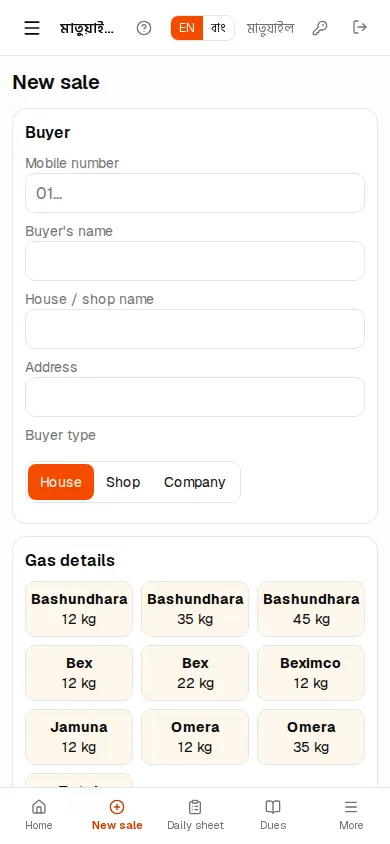
As soon as the cylinder is handed over and paid for, open New sale:
- Type the first digits of the buyer's mobile — a known buyer's name appears, tap it. Any previous due shows at once.
- Tap the cylinder button and set Refill/Package.
- Check which brand's empty you got — if it is another brand, change Empty cylinder taken back.
- Type the floor; the floor charge fills itself in.
- Paid in full: just press ✔ Save sale. Paid less: type what you got in Cash paid — the rest goes on the buyer's due.
All the rules are in New sale.
Mistake to avoid: Don't enter all sales together back at the shop. It is easy to forget the buyer, the empty returned or the floor. Enter every delivery right away.
Collecting dues on the way
If a buyer pays an old due, tap Dues at the bottom:
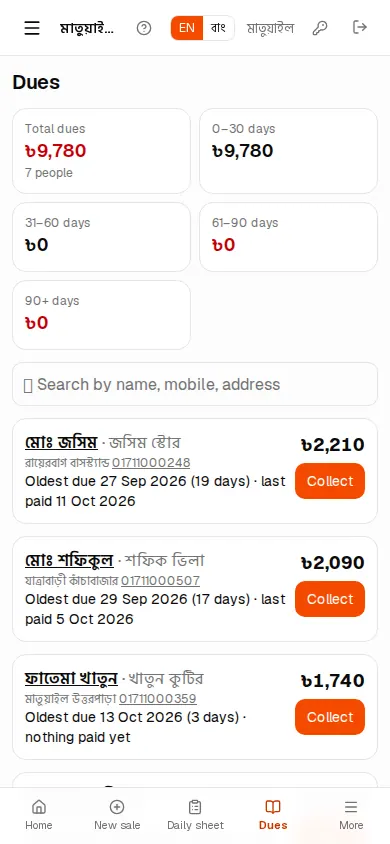
- Type a name, mobile or address in the search box.
- Press Collect on the buyer's line.
- Type the Amount and press Take payment.
The money goes into "Dues recovered" on your sheet for today and your deposit goes up. Details are in Customers & dues.
Spending on the way
For van fuel, snacks, labour and similar costs open Daily sheet, type the head and the taka under Other expenses and press Add expense. Expenses come off the deposit.
Deposit and closing at day end
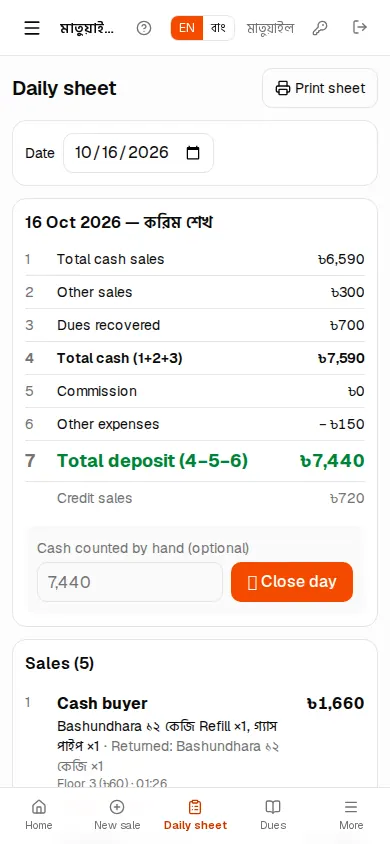
- Open Daily sheet. Line 7 of the box, Total deposit (4−5−6), is the money you must hand in.
- Count your cash and type it in Cash counted by hand. Any short or over shows at once; check whether a sale or expense was missed.
- When it matches, press 🔒 Close day and hand the cash to the manager.
After closing, today's sheet can't be changed. If something is wrong, tell the manager — they can reopen the day (Daily sheet).
How owners and managers follow the work
- On Daily sheet pick any delivery man in Staff to see his sheet for today — who got what, how much he collected.
- The By person table in Reports → Sales report compares every delivery man's sales, cash, credit and commission (Reports).
- Reports → Daily deposits shows everyone's daily deposit and the difference to the cash counted.
- If a delivery man writes on paper or has no phone, the manager can enter his sales under Seller (delivery man) on New sale (Entering old paper sheets).