Owner & settings
Settings, licence & online payments
The Company & licence page, plan and expiry, licence modules (what is switched on), what happens when the licence lapses, online payment gateways, backup and the audit log
Who it is for:Owner
This chapter is for the owner only. Settings → Company & licence also has buttons to every other setting: Branches, Staff, Brands & products, Prices, Online payments and My password.
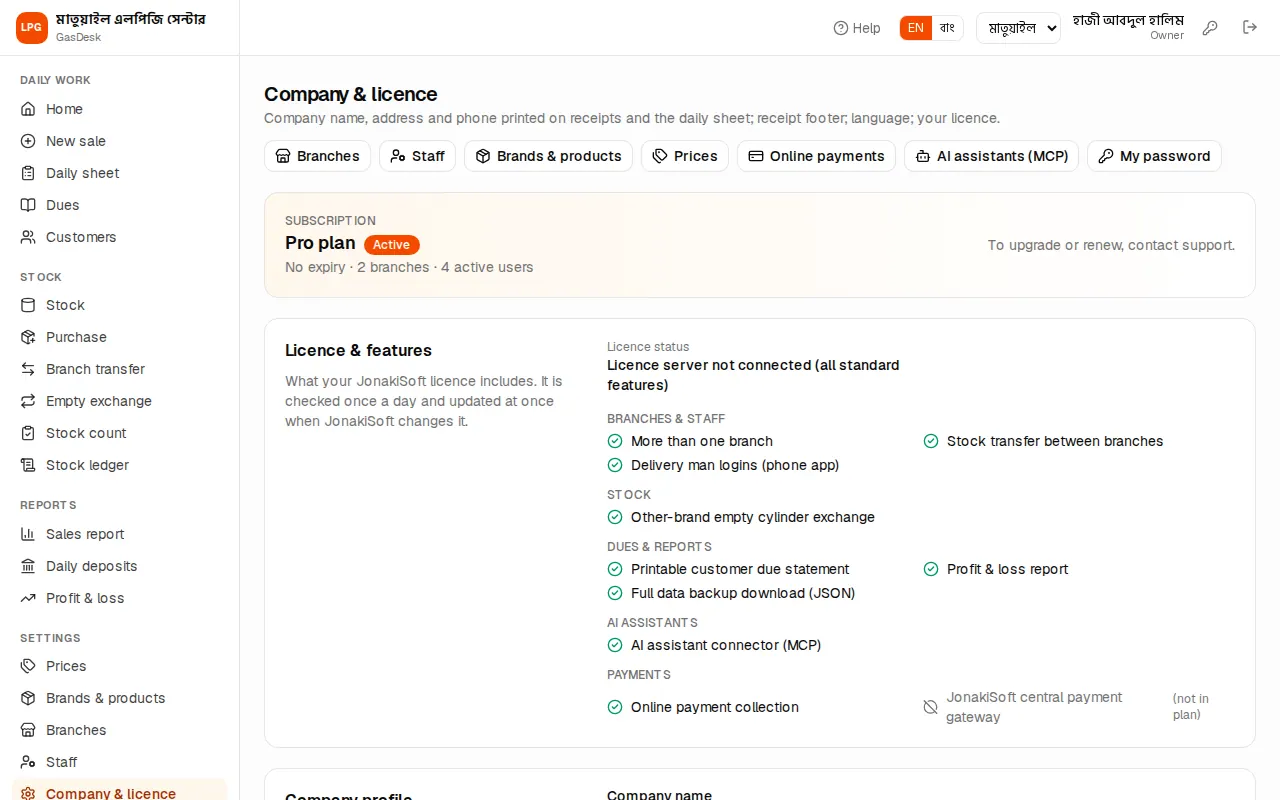
Plan and expiry
The orange box at the top shows the Subscription: the plan (Free trial / Starter / Business / Pro), Active or Suspended, when it expires (days left), how many branches and active users. To upgrade or renew, contact JonakiSoft support.
Licence and modules
Below it, Licence & features shows what your JonakiSoft licence includes:
- Licence status, Plan, Valid until and Last synced.
- Whether each module is on: more than one branch, stock transfer between branches, delivery man logins (phone app), other-brand empty cylinder exchange, printable customer due statement, profit & loss report, full data backup, AI assistant connector (MCP), online payment collection. Missing ones say "not in plan".
The licence is checked once a day and updated at once when JonakiSoft changes it. Press Sync licence now to check right away.
New sale, daily sheet and closing, dues and recovery, customers, stock, purchases and counts, the sales report and daily deposits, prices, products, staff, branches and settings are in every plan and are never switched off.
Opening a page that is not in your plan shows "… is not part of your plan" and a Back to home button. Switching a module off never changes entries already made.
When the licence lapses
- After the expiry date there are a few days of grace. Every page then shows a yellow line "Your licence has expired. GasDesk keeps working until (date); please renew."
- When the grace period ends or the licence is suspended, signing in shows the licence page and nothing else opens. It lists JonakiSoft's phone and email.
Online payments
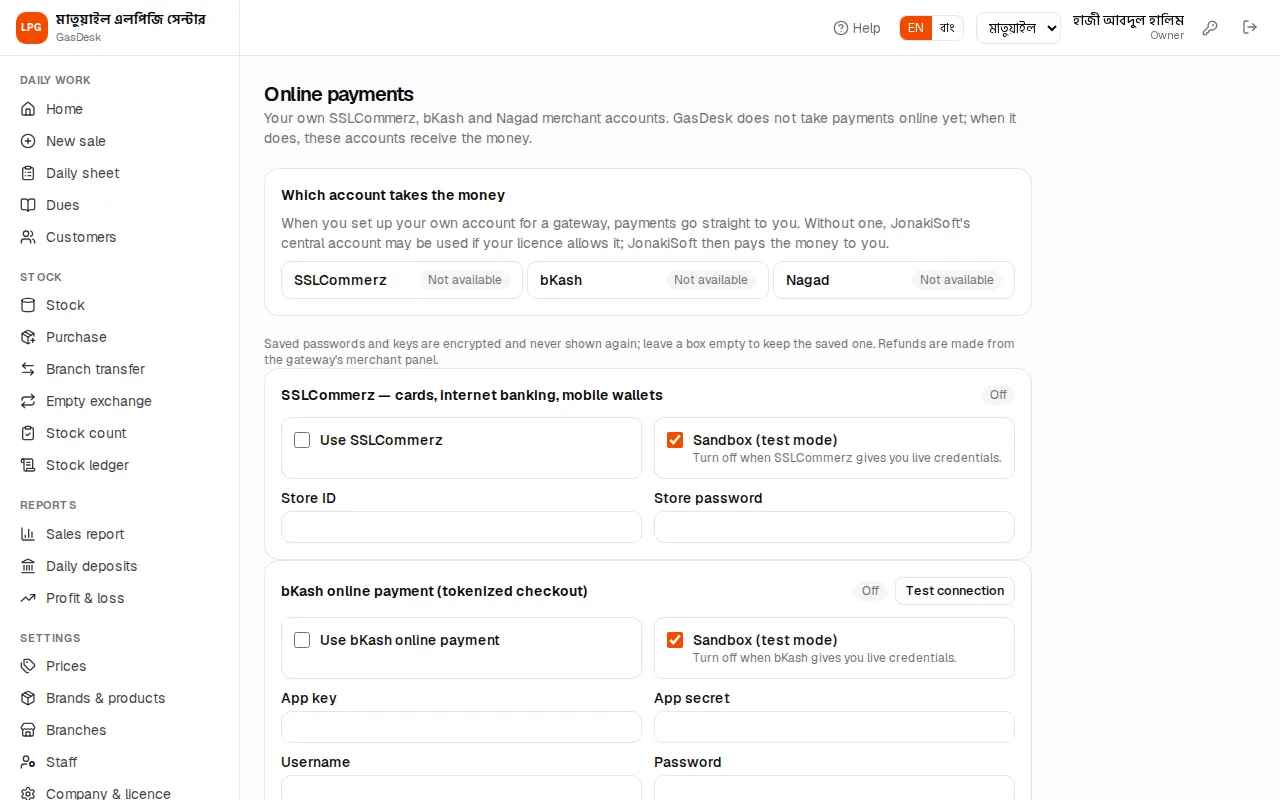
Settings → Online payments holds your own SSLCommerz, bKash and Nagad merchant account details (store ID, app key, merchant number etc.). Each has a Sandbox (test mode) switch — turn it off when the gateway gives you live credentials.
- Saved passwords and keys are encrypted and never shown again. Leave a box empty to keep the saved one.
- With your own account the money goes straight to you. Without one, JonakiSoft's central account may be used if your licence allows it; JonakiSoft then pays the money to you. The Payments collected by JonakiSoft part at the bottom shows that account.
Backup
At the bottom of Company & licence, Download backup under Backup downloads everything of your company (sales, dues, stock, closings…) as one JSON file. Keep a copy somewhere safe every month.
Audit log
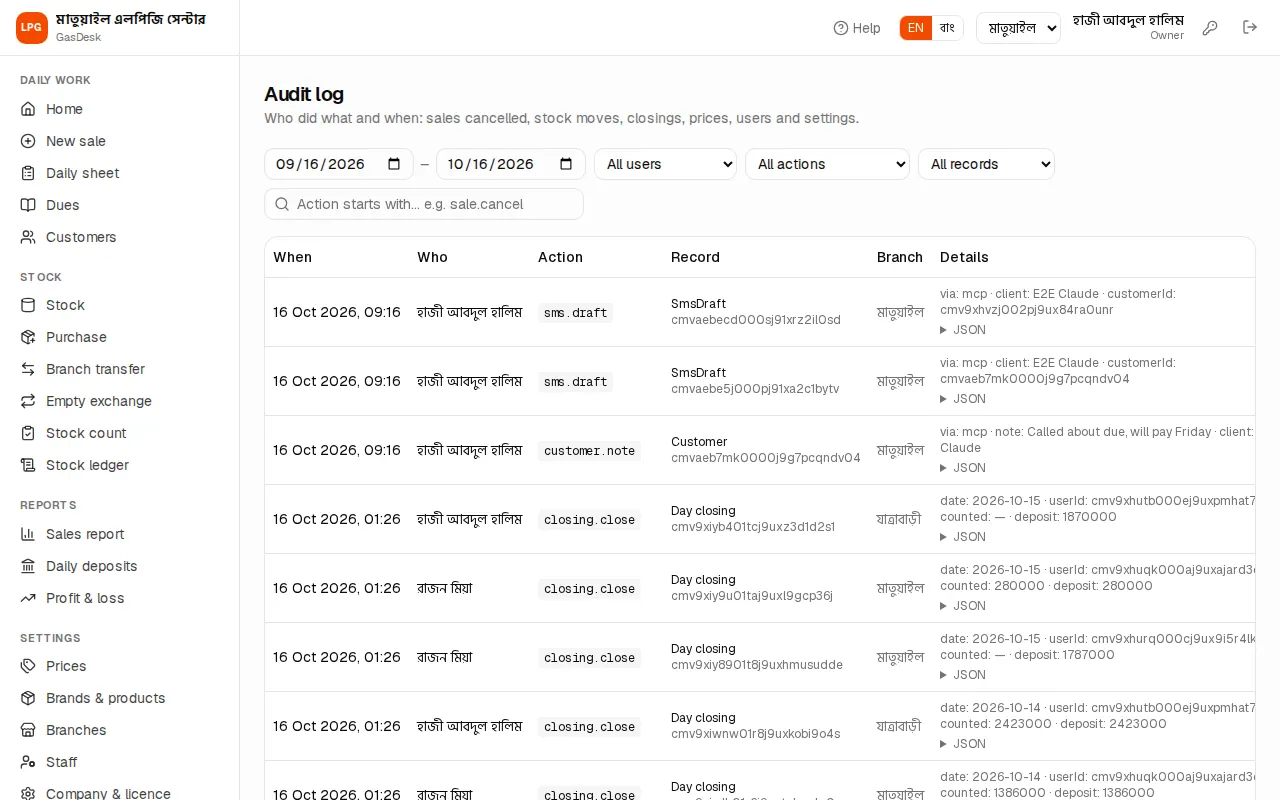
Settings → Audit log shows who did what and when: cancelled sales, purchases and stock corrections, day closings and reopenings, prices, staff and settings changes. Filter by person, record type, action (e.g. sale.cancel) and date. Each line comes with the details of what changed.